How a session works
From choosing a service to keeping up your habits afterwards, here is what happens when you book on Lifewillow.
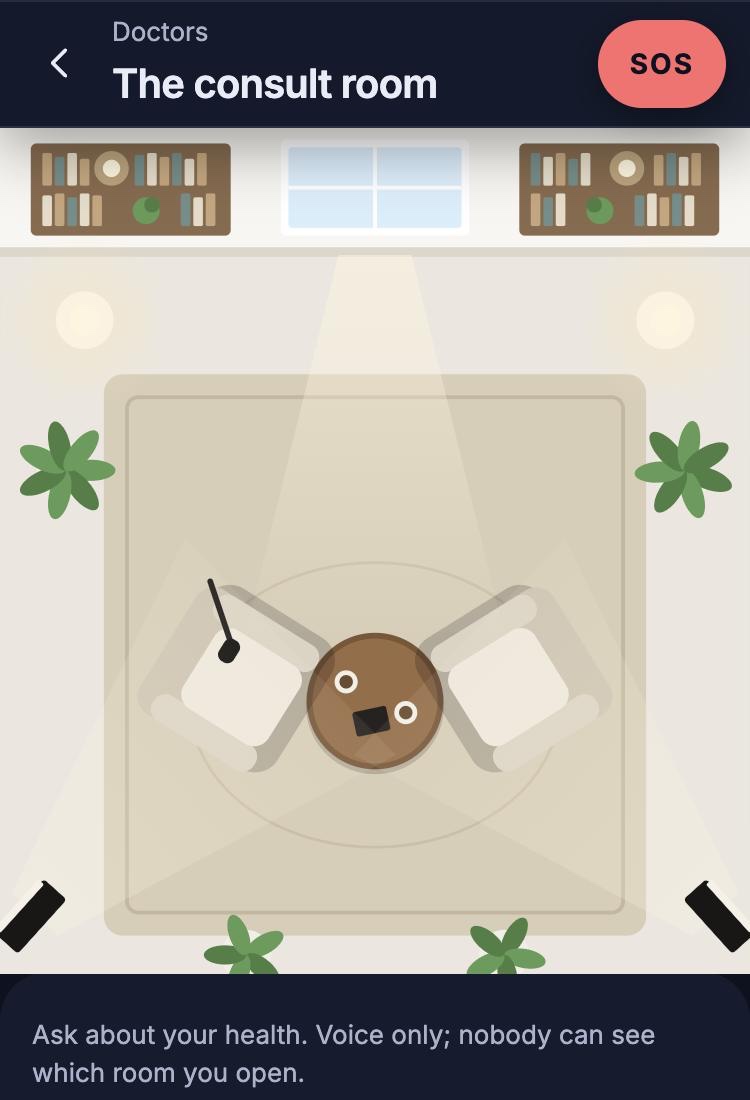
The consult room, in the Lifewillow app
Choose a service
Open lifewillow.app and browse therapy, medical consultations, and mediation and arbitration. You do not need an account, and nobody else can see which service you open.
Choose how to book
Pick a professional’s open time, or join the live queue to speak with whoever is online.
Sign in
Enter your phone number and the one-time code we send you. You can choose a nickname.
Pay
The price is shown before you book, and you pay by card when you book. The payment is held until the session is completed.
Wait in the room
You are seated in the room and can check your microphone. The screen shows your place in the queue, or when your professional is expected.
Talk by voice
The session starts when your professional joins. You can mute yourself or leave at any point.
Afterwards
You are asked how you feel now, and you can book a follow-up session.
Two ways to book
Book a time
Each service lists its professionals and the times they have published. Choose the professional and time that suit you.
See open timesJoin the live queue
Your request goes to a professional who is online. If they cannot take it, it passes to the next one available.
See who is online
What you need
- A phone number
- You sign in with your phone number and a one-time code. There is no password.
- A device with a microphone
- Lifewillow works in the web browser on your phone or computer. Allow the microphone when you are asked.
- An internet connection
- Sessions are voice only, which uses far less data than video.
Between sessions
A short daily check-in keeps track of your mood and sleep, with a note if you want to add one. Notes are encrypted at rest.
You can also talk to your AI companion, set goals and complete questionnaires. An assigned therapist or accountability partner can support you, and our safety and privacy page sets out what each of them can see.
Booking questions
Can I choose my professional?
Yes, when you book a time. Each service lists its professionals and their open times. If you join the live queue, you are connected with the next available professional.
What happens while I wait?
You wait in the room and can check that your microphone is working. The screen shows your place in the queue, or when your professional is expected.
Can I cancel a booking?
Yes, at any point before the session starts. The held payment is then refunded.
How many bookings can I have?
You can have one active booking at a time.
How do I pay?
By card when you book. The payment is held until the session is completed, then released to the professional.
Urgent support
Lifewillow has not opened yet, so its SOS button is not available.
In immediate danger? Call 112 (emergency services).
Book your first session
Browse services without an account, and sign in with your phone number when you are ready.